Amazon S3 Default Encryption Amazon S3 Default Encryption Overview With Amazon S3 default encryption, you can configure the bucket to automatically encrypt all new objects you upload to the bucket. The encryption methods could be either Amazon S3-managed keys (SSE-S3) or AWS KMS keys stored in AWS Key Management Service (AWS-KMS) (SSE-KMS). The objects that already exist in the bucket are not encrypted automatically, you can encrypt them using CS Browser. When you upload the file after enabling default encryption Amazon S3 uses default encryption if there is no encryption information provided with the PUT request, and uses the encryption information from the PUT request otherwise. So, you may use the Server-Side Encryption Rules to override encryption settings for particular files or folders. Please check Amazon S3 User Guide for more details about Amazon S3 default encryption.
To Enable Default Encryption for the Bucket 1. Select the bucket you want to enable the encryption for and click: Buckets, Default Encryption Configuration: 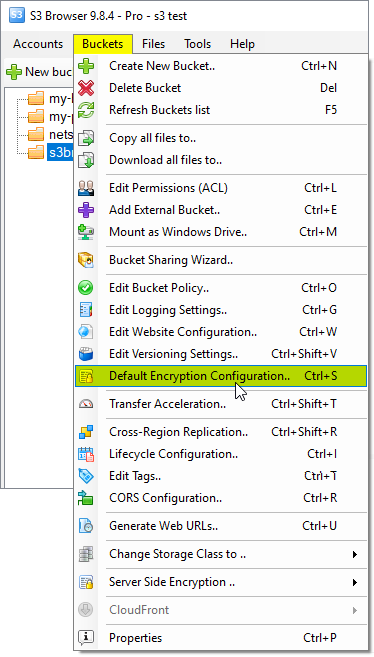
Select the bucket and click Buckets, Default Encryption Configuration The Bucket Default Encryption dialog will open: 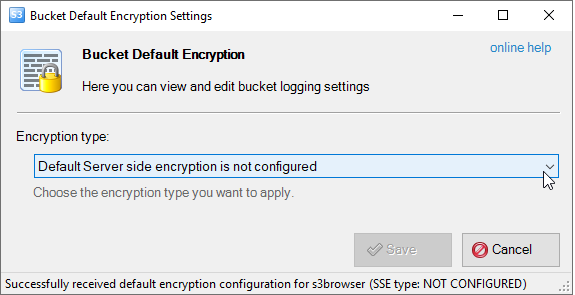
The Bucket Default Encryption Settings dialog (encryption not enabled) 2. Choose the encryption type and click Save: 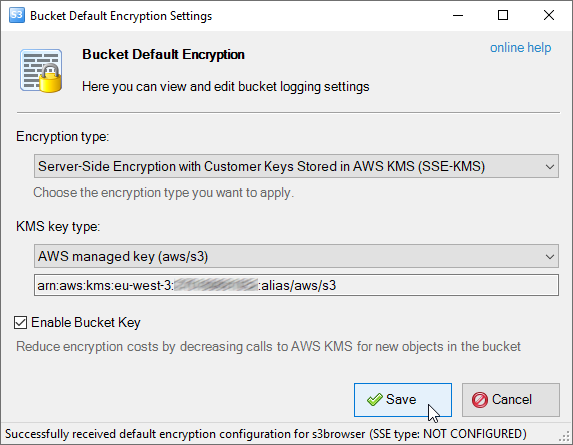
The Bucket Default Encryption Settings dialog (encryption not enabled)
To Disable Default Bucket Encryption 1. Select the bucket you want to disable the encryption for and click: Buckets, Default Encryption Configuration:
Select the bucket and click Buckets, Default Encryption Configuration The Bucket Default Encryption dialog will open: 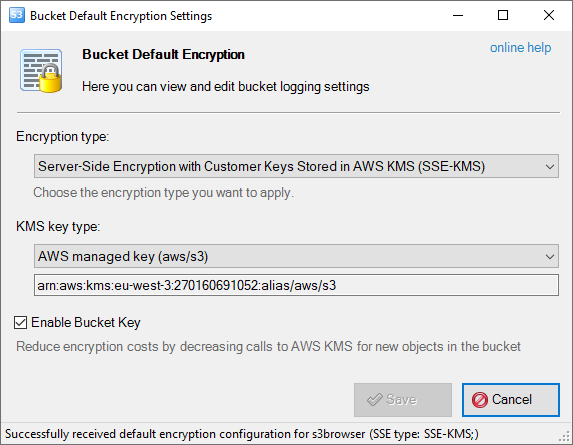
The Bucket Default Encryption Settings dialog (encryption enabled) 2. Set the encryption type to Default Server side encryption is not configured and click Save: 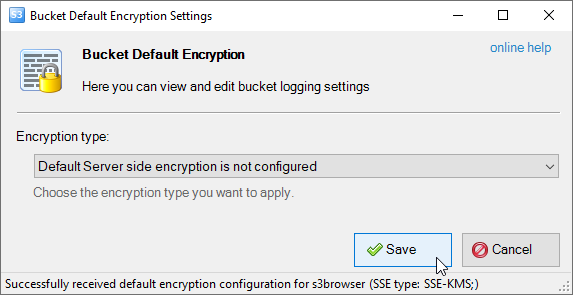
The Bucket Default Encryption Settings dialog (encryption disabled)
|