Amazon S3 Glacier Storage Classes Amazon S3 Glacier Storage Classes The following Amazon S3 Glacier Storage Classes are available for now: - GLACIER - (Amazon S3 Glacier Flexible Retrieval, formerly Amazon S3 Glacier) - For long-term backups and archives with retrieval option from 1 minute to 12 hours
- GLACIER_IR - (Amazon S3 Glacier Instant Retrieval - For long-lived archive data accessed once a quarter with instant retrieval in milliseconds)
- DEEP_ARCHIVE - (Amazon S3 Glacier Deep Archive) - For long-term data archiving that is accessed once or twice in a year and can be restored within 12 hours
The GLACIER, GLACIER_IR and DEEP_ARCHIVE differ from other storage classes. They was designed for data that will be stored for decades without the need to access. As of Aug 2022, these are the cheapest storage classes on AWS. You pay when you need to access your data (see the pricing for more details). The data you store under the GLACIER and DEEP_ARCHIVE storage classes is not available for real-time access. You need to restore the objects before you access them. Please check out instructions below for more details on how to restore the files stored under the GLACIER storage class. The GLACIER_IR storage class offers immediate access to the data. The restore is not required for downloading the data. In order to move your object to the GLACIER or DEEP_ARCHIVE storage classes you need to configure Bucket Lifecycle Rules. There is no way to apply these storage classes during uploading.
Starting from Nov 26, 2018, direct uploads to the GLACIER, GLACIER_IR and DEEP_ARCHIVE storage classes are possible, please check out the instructions below. The GLACIER, GLACIER_IR and DEEP_ARCHIVE storage classes offer the same durability and resiliency as STANDARD.
To apply Amazon S3 Glacier storage classes for existing files 1. Start CS Browser and select the file(s) and/or folder(s) you want to change storage class for. 2. Click Files, Change Storage Class to and choose one of Amazon S3 Glacier storage classes. 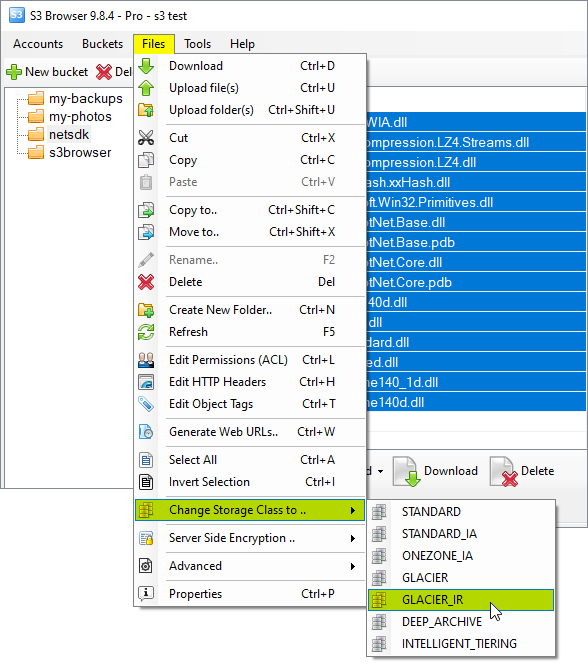
How to apply the GLACIER, GLACIER_IR or DEEP_ARCHIVE storage classes for already uploaded files 3. CS Browser will update storage class for selected files and refresh files list.
To apply Amazon S3 Glacier storage class for entire Bucket 1. Start CS Browser and select the bucket you want to change storage class for. 2. Click Buckets, Change Storage Class to and choose one of Amazon S3 Glacier storage classes. 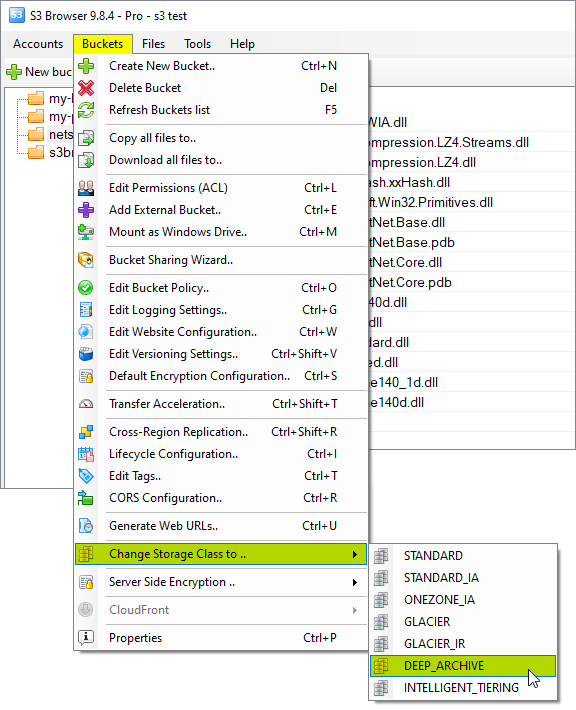
How to apply the GLACIER, GLACIER_IR or DEEP_ARCHIVE storage classes for entire bucket 3. CS Browser will apply selected storage class for all files inside the bucket. If your Amazon S3 Bucket contains a lot of files, this operation may take a while. You can significantly increase performance with CS Browser Pro. It allows you to increase the number of concurrent working threads and thereby process your files much more faster!
Automatic transition to Amazon S3 Glacier You can configure automatic transition to the GLACIER, GLACIER_IR and/or DEEP_ARCHIVE storage classes via Lifecycle Rules, please check the steps below for detailed instructions. 1. Start CS Browser and select the bucket you want to configure lifecycle rules for 2. Click Buckets, Lifecycle Configuration 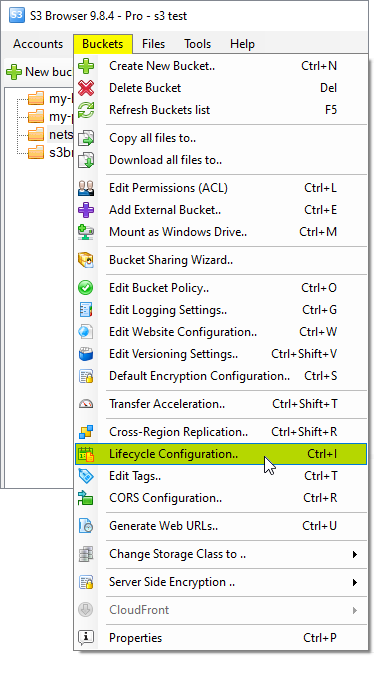
Select the bucket and click Buckets, Lifecycle Configuration.. Or use the CTRL+I keyboard shortcut. The Bucket Lifecycle Rules dialog will open: 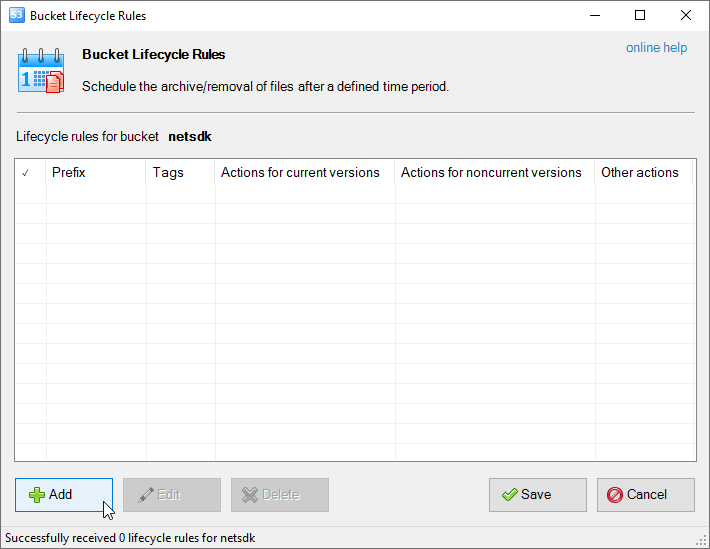
Bucket Lifecycle Configuration dialog Click the Add button, the New lifecycle Rule dialog will open: 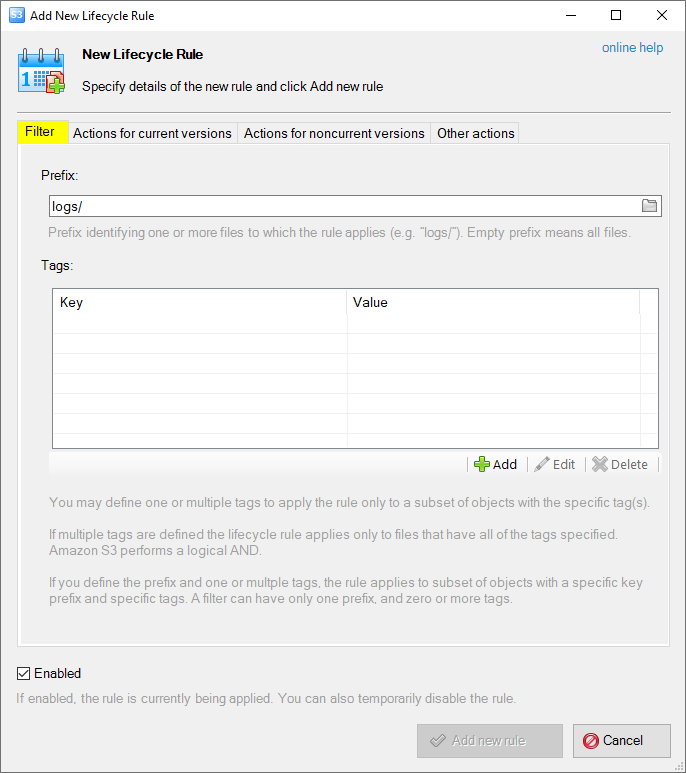
Transition to the Amazon S3 Glacier storage class via lifecycle rules 3. Specify the Prefix - choose the folder if you would like to configure transition to Amazon S3 Glacier for the particular folder or leave this field empty to apply the Amazon S3 Glacier storage class for entire bucket. 4. Switch to the Actions for current versions tab 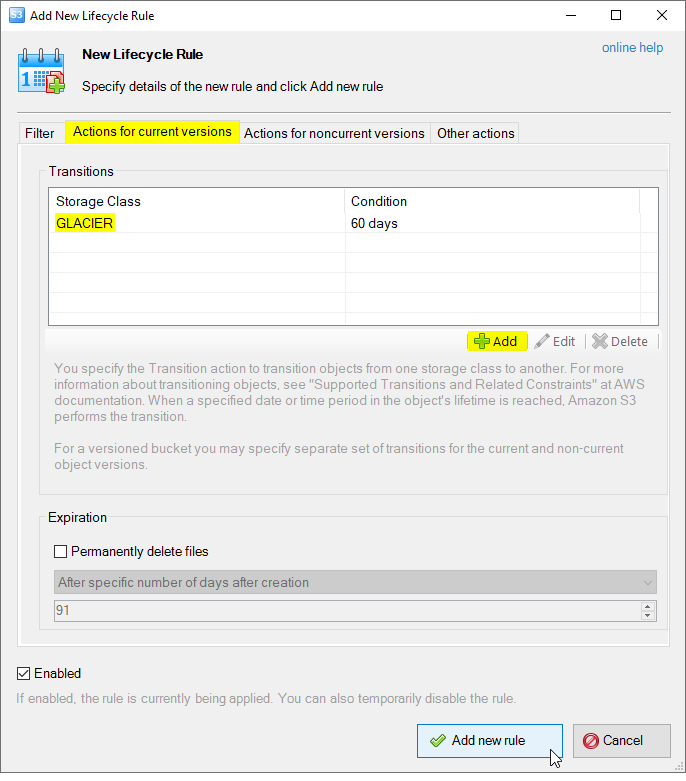
Add New Lifecycle Rule dialog - Actions for current versions actions 5. Add new transition to the GLACIER, GLACIER_IR and/or DEEP_ARCHIVE storage class. 5.1 (Optional) Configure the same for noncurrent versions if you would like to transfer object versions for versioning-enabled buckets 6. Click Add new rule to add new rule into the list and Save to apply changes.
Direct uploads to Amazon S3 Glacier Storage Classes You may configure CS Browser to automatically apply the GLACIER, GLACIER_IR or DEEP_ARCHIVE storage class for files during uploading. The Storage Class directive is specified as part of the upload request, so no extra requests and no extra charges involved to upload files directly to the GLACIER, GLACIER_IR or DEEP_ARCHIVE storage classes. This can be configured via Default Storage Classes. 1. Click Tools, Default Storage Classes.. 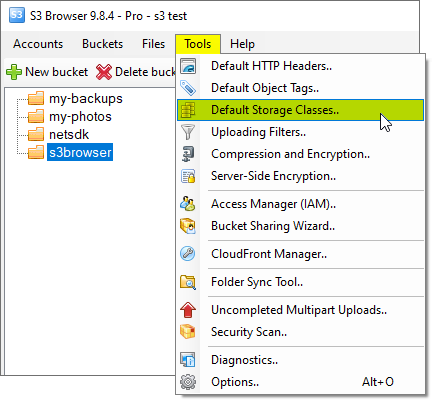
Click Tools, Default Storage Classes.. The Storage Class Rules dialog will open: 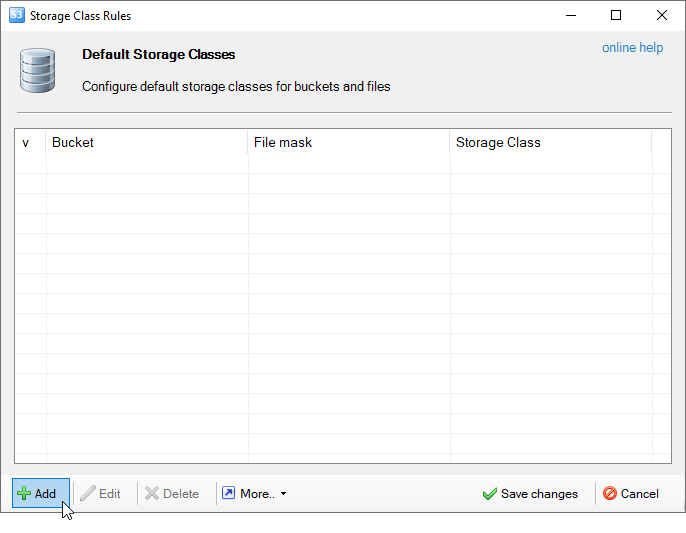
Default Storage Classes dialog. 2. Click Add, the Add new Storage Class Rule dialog will open: 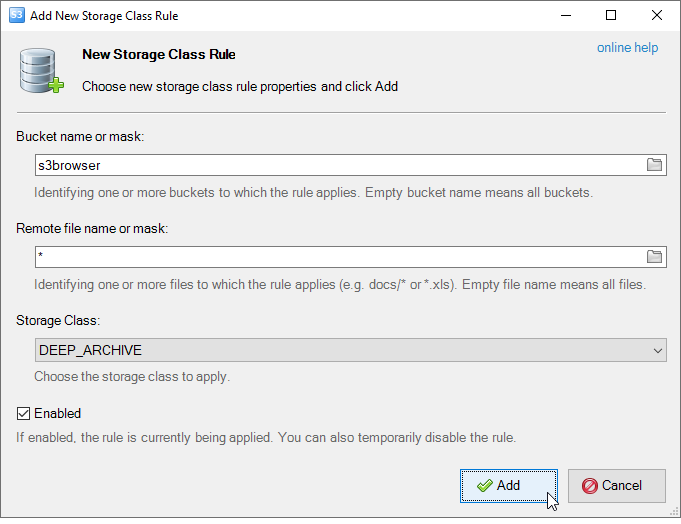
Add new Default Storage Class dialog 3. Specify the Bucket and optional file mask and desired Storage Class. 4. Click Add and Save changes
How to restore files from Amazon S3 Glacier 1. Select the files you want to restore. 2. Do right-click and choose Restore from Amazon S3 Glacier 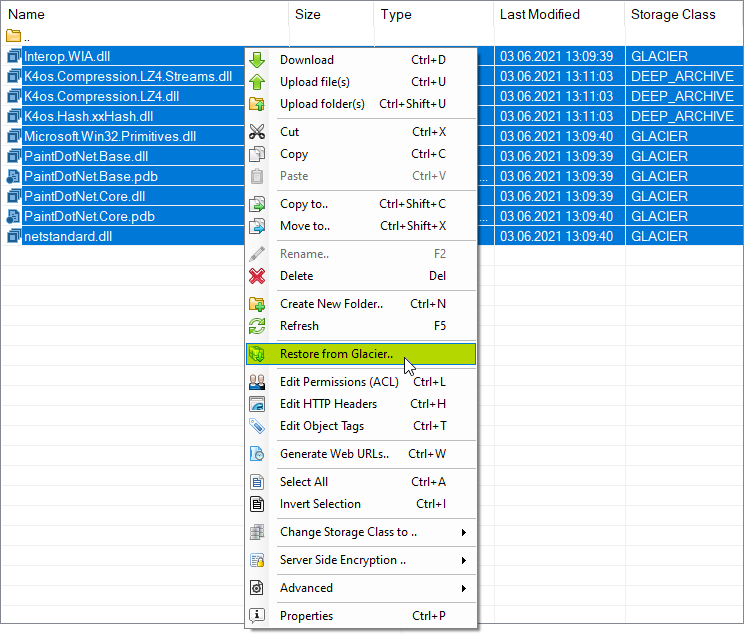
Right click on files you want to restore and choose Restore from Amazon S3 Glacier The Restore Files from Amazon S3 Glacier dialog will open: 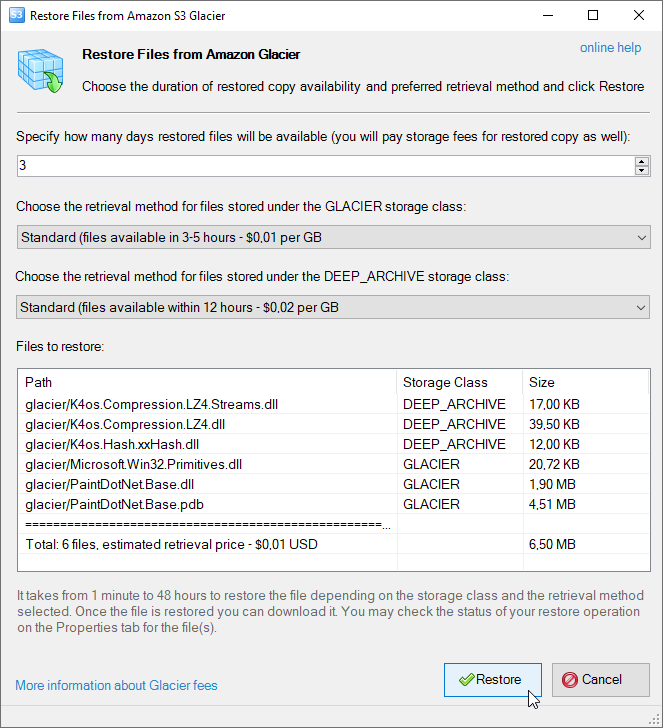
Restore Files from Amazon S3 Glacier Dialog 2. Specify how long restored files will be available for download. 3. Select retrieval method For the GLACIER storage class: - Expedited - files available in 1-5 min ~ $0.03 per GB
- Standard - files available in 3-5 hours ~ $0.01 per GB
- Bulk - files available in 5-12 hours ~ FREE
For the DEEP_ARCHIVE storage class: - Standard - files available within 12 hours ~ $0.02 per GB
- Bulk - files available within 48 hours ~ $0.0025 per GB
Please note: retrieval prices above may vary from the region to region and may change over time, please check out the actual pricing here. 4. Click Restore. CS Browser will initiate restore operation for files you selected. 4. Wait from 1 minute to 48 hours, depending on the storage class and retrieval method. Then you can download requested files using standard procedure. To check the status of restore operation: 1. Select the file and open the Properties tab 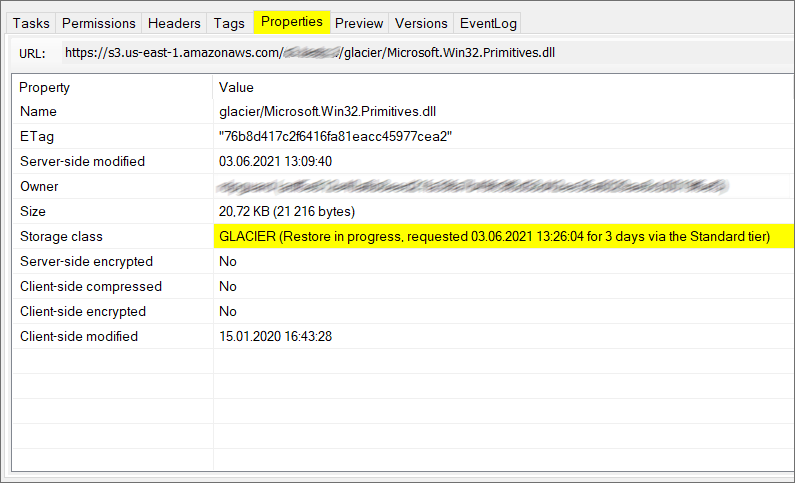
How to check the status of restore operation: 2. The Storage Class row shows the status of restore operation.
|