CS Browser logging settings. How to configure logging.
Sometimes event logs may be extremely helpful for diagnostics and troubleshooting purposes. CS Browser writes detailed logs for every S3 request, so if something doesn't work as expected you can always check the logs and find the reason.
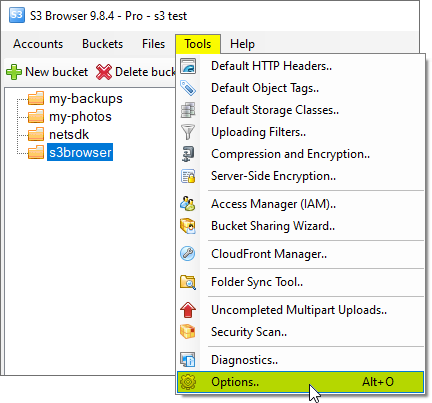
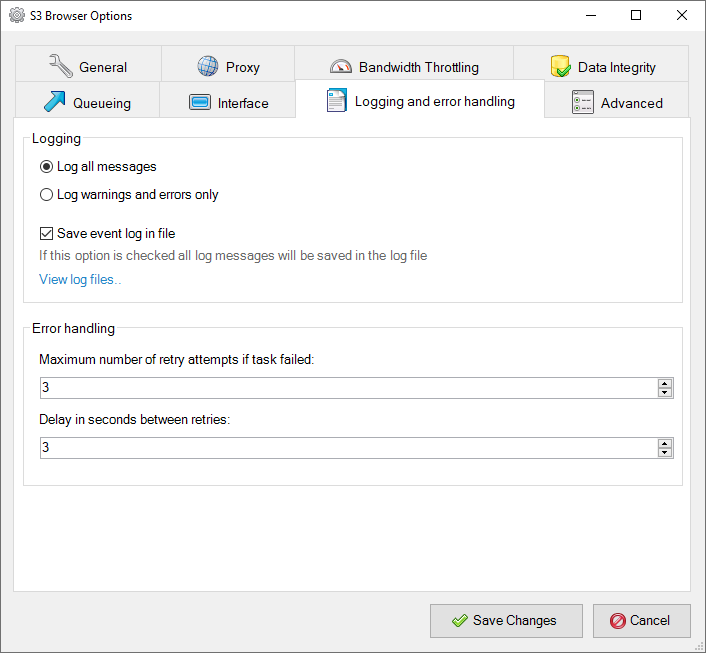
2. The Options dialog will open, switch to the Logging and error handling tab:
CS Browser logging settings
Logging Level:
Log all messages: - defines standard logging level, all log messages are logged, this logging level is selected by default.
Log warnings and errors only - defines reduced logging level, only warnings and errors are logged. You may use this option on heavy loaded machines to slightly reduce resources usage.
Save event log in file - If this option is checked all log messages will be saved in the following directory: %APPDATA%\S3Browser\logs
The View log files link opens up the logging directory (%APPDATA%\S3Browser\logs)
CS Browser is developed by Netsdk Software FZE and is not affiliated with, endorsed by, or sponsored by Amazon or AWS. Amazon S3 and Amazon S3 Glacier are trademarks of Amazon.com, Inc. or its affiliates.