We have recently added some new features for Amazon S3 compatible accounts like custom s3 regions and region specific enpoints, and hope these improvements will make your work with Amazon S3 compatible storage services even more effective and comfortable.
In this article we would like to show you how to employ these new features with Wasabi - an Amazon S3 compatible object storage.
Registering Wasabi Account in CS Browser:
1. Start CS Browser and click Accounts -> Add New Account.
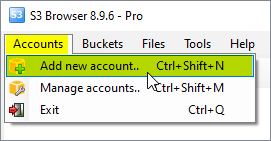
Click Accounts -> Add New Account
Add New Account dialog will open:
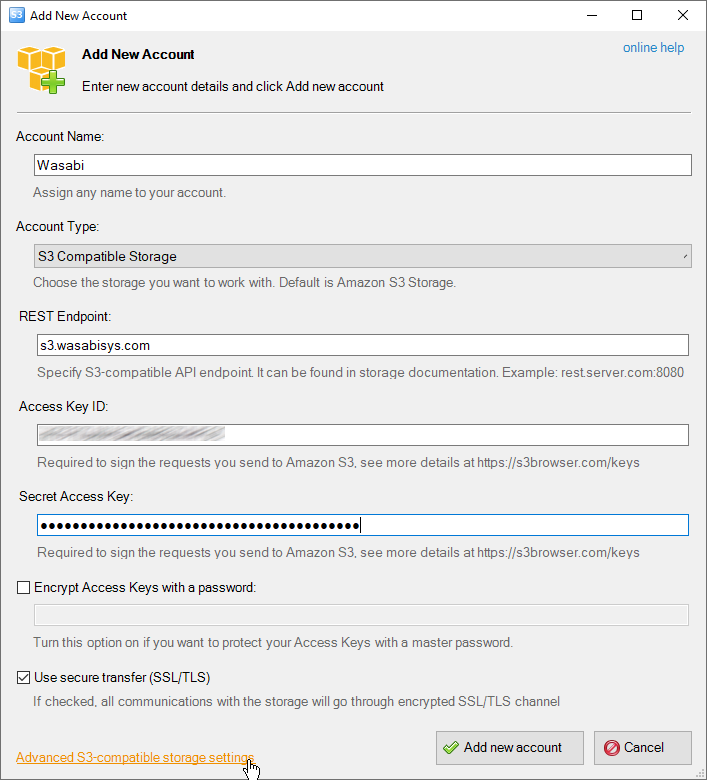
Add New Account dialog.
2. Choose Amazon S3 compatible Storage as account type
3. Specify the REST Endpoint - s3.wasabisys.com
5. Specify Access Key ID and Secret Access Key - access keys can be found in your Wasabi Console/Access Keys
6. Turn on Encrypt Access Keys with a password - if you would like to protect your Access Key ID and Secret Access Key with a master password. You will be asked for a master password each time you open the account.
7. Turn on Use secure transfer (SSL/TLS) - if you would like to encrypt all communications with the storage.
8. Click Advanced Amazon S3 compatible storage settings
The Advanced Amazon S3 compatible storage settings dialog will open:
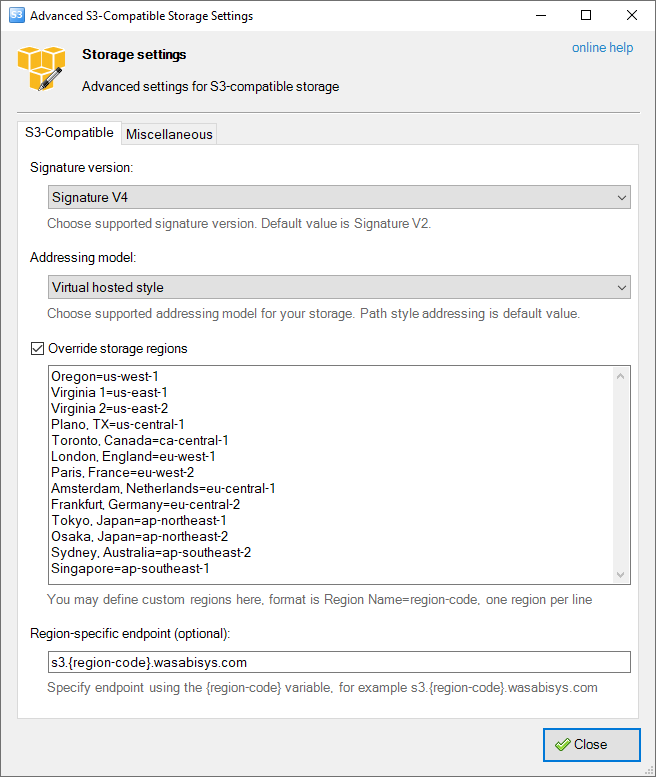
Advanced Amazon S3 compatible storage settings
9. Set Signature Version to V4.
10. Set Addressing Model - to Virtual-hosted style.
11. Define Storage regions as below:
Oregon=us-west-1
Virginia 1=us-east-1
Virginia 2=us-east-2
Plano, TX=us-central-1
Toronto, Canada=ca-central-1
London, England=eu-west-1
Paris, France=eu-west-2
Amsterdam, Netherlands=eu-central-1
Frankfurt, Germany=eu-central-2
Tokyo, Japan=ap-northeast-1
Osaka, Japan=ap-northeast-2
Sydney, Australia=ap-southeast-2
Singapore=ap-southeast-1
12. Define Region-specific endpoint as s3.{region-code}.wasabisys.com
13. Click Close and Add new account
Voila, you can now acccess your buckets in any region via direct region-specific endpoints
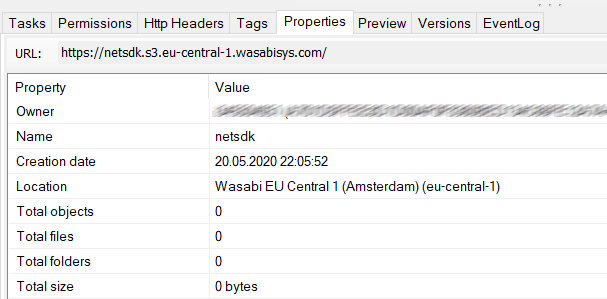
Custom Amazon S3 compatible storage Regions
Create new buckets in any region supported by the storage:
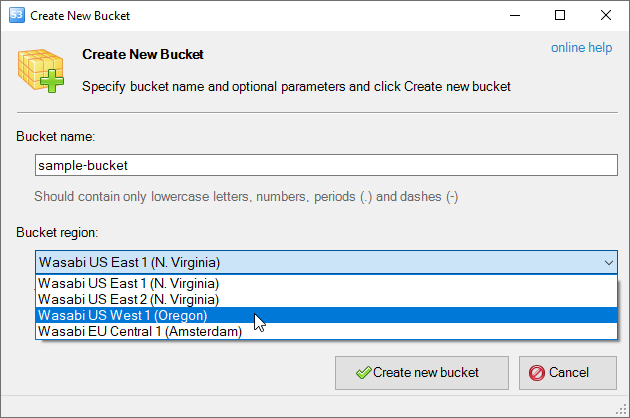
Custom Amazon S3 compatible storage Regions