Bucket Cost Allocation Tags - Table of Contents Cost Allocation Taggging overview Recently Amazon S3 Team announced suppor for Cost Allocation Reports, a new AWS billing feature that enables you to organize and track your AWS costs using tagging. A tag is a key-value pair that represents a label you assign to a bucket. In your AWS bill, costs are organized by tags you define. You may define multiple cost allocation tags for your buckets. After you define the tags, you need to log in to the AWS Portal, sign up for billing reports, and tell the AWS billing system which tag keys are meaningful for cost allocation purposes. You may find more detailed description in Amazon Web Services Blog. With CS Browser Freeware you can easily manage your Cost Allocation Tags. Please check detailed instructions below.
To add New Cost Allocation Tag 1. Click Buckets ->Cost Allocation Tags... 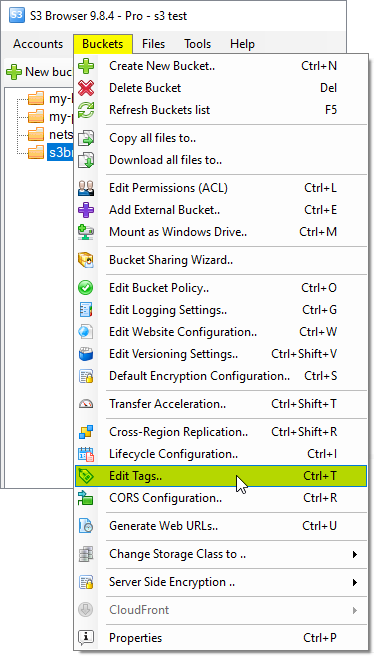
You may also use the Ctrl+T keyboard shortcut to open Cost Allocation Tags Manager. The Tags tab will open: 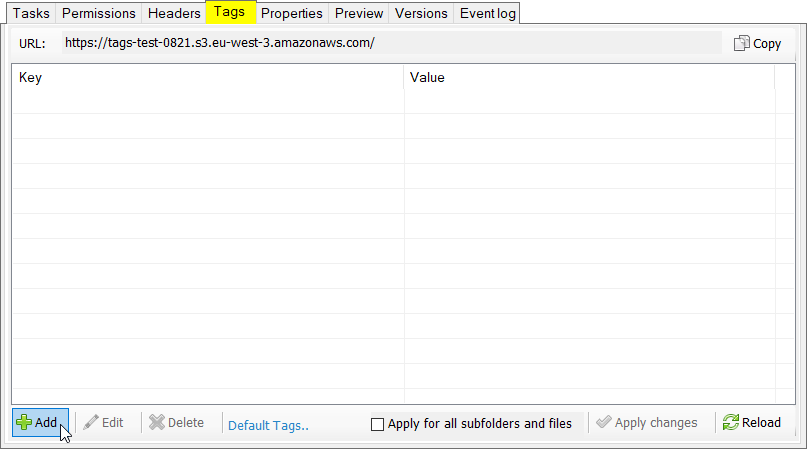
The Tags tab allows you to Add, Edit and Delete Cost Allocation Tags. 2. Click Add, the Add New Bucket Tag dialog will open: 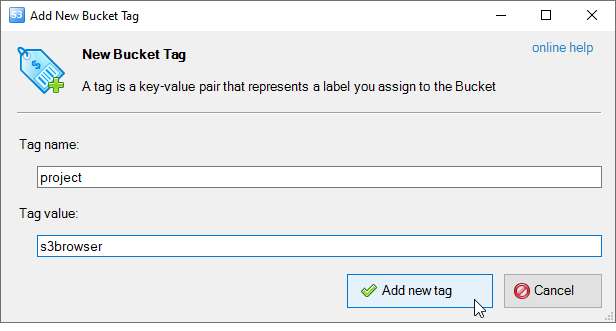
The Add New Bucket Tag dialog allows you to define new bucket tag. 3. Specify the tag name and value and click Add new tag. 4. Click Apply Changes.
To edit existing Cost Allocation Tag 1. Select the bucket and click Buckets, Cost Allocation Tags... The Tags tab will open: 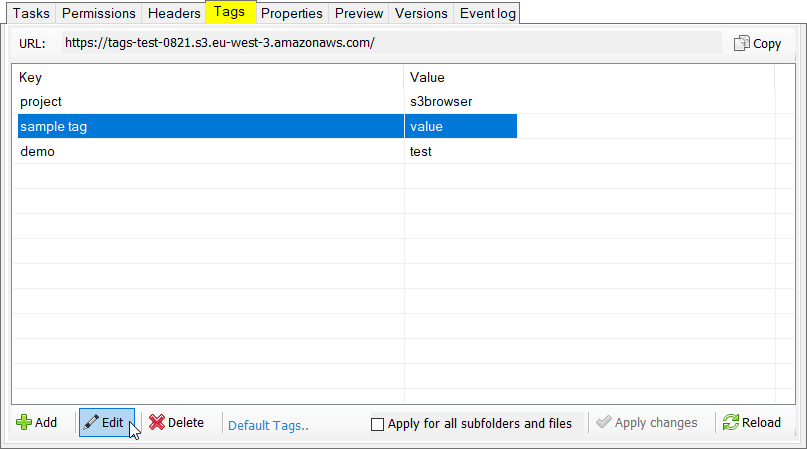
Select the tag you want to edit and click Edit. You can also double-click the tag to edit it. 2. Select the tag you want to edit and click the Edit button. 3. The Edit Bucket Tag dialog will open: 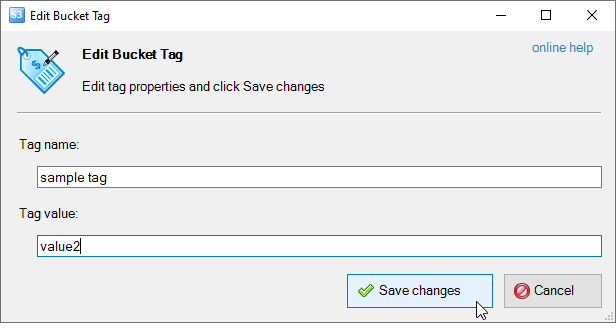
The Edit Bucket Tag dialog allows you to modify existing cost allocation tags. 5. Edit tag properties and click Save changes. 6. Click Apply Changes.
To delete one or multiple cost allocation tags: 1. Select the bucket and click Buckets, Cost Allocation Tags. The Tag tab will open: 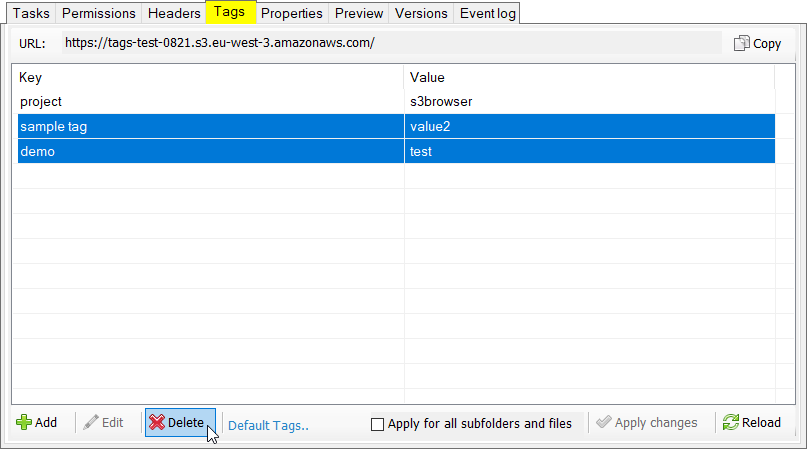
Select the tags(s) you want to delete and click Delete. 2. Select the tags(s) you want to delete and click Delete. 3. Click Apply Changes.
|